Frankly speaking, I have enough of my Samsung Galaxy S2 smartphone. True, it does everything from the mundane to the esoteric. I have an app to tune my guitar, an app for star gazing, a posing app for photography, etc. In fact, it has basically replaced my need to use a regular PC other than for serious photo editing purposes.
Turning my attention to feature phones, I am quite taken in by the Nokia Asha 210. This phone runs on the old Nokia S40 platform (not as sophisticated as the Android). As a result, power consumption is very low and the processing speed is supposedly fast (i.e. I haven't bought one to try out yet). I really would want a phone with a battery that lasts for a week based on low usage.
The Asha 210 has a physical keyboard, which is a classic feature to have now that anything retro is in vogue. It has a dedicated button to bring up Whatsapp. Due to this and due to the physical keyboard, it is the ideal phone for heavy texters. It also has a dedicated button to launch the camera, which is great for impromptu shots.
The Asha 210 runs only on 2G and not 3G, but it this is probably alright for text and call purposes, since we are not talking about internet browsing here. It also has WLAN for use on home wifi, which is very handy to have.
Without having tried one and basing on specs alone, I daresay the Asha 210 is quite a good alternative to my smartphone for my text and call purposes. The built-in Whatsapp makes it THE reason to want this phone. If you are interested to get one too, make sure it is the RM-928 variant, which has dual SIM capability and which allows you to charge the battery through the microUSB port.
Showing posts with label gadget. Show all posts
Showing posts with label gadget. Show all posts
Friday, January 17, 2014


Monday, December 23, 2013
Universal travel adaptor
When I saw going to the US earlier this year, it was really difficult to find an Aussie-to-US adaptor, except in some travel shops where they were ridiculously expensive. I managed to find this universal adaptor in Malaysia for RM17, less than a quarter of the price of an ordinary adaptor. I found it in an ordinary hardware store. Later that day, I found a large selection of universal adaptors in a departmental store in One Utama, but I still like this one best. Now, wouldn't it be perfect if it has a USB charger built in as well?


(The images show the two sides of the adaptor. One side shows all the pins fully extended. For Australia and US use, the pins can be turned at an angle)
Tuesday, September 18, 2012
Next: Motorola CloudBB Android computer
After my excitement of seeing the Android cameras (re: Samsung Galaxy Camera and Nikon S800C), here comes another Android gadget. This time it is from Motorola. Well done, Motorola! Finally, Motorola has pioneered what could be a game changing product, like the first time when it pioneered the mobile phone. Hopefully, this time this product turns into a money spinner for good old Moto.
This new Android gadget is called the Motorola CloudBB. It is basically an Android-based desktop computer, with wireless keyboard and mouse. I hope it doesn't stop at just being an entertainment device for viewing video and surfing the net.
I like working on a desktop environment when I write my blog, reply emails, or search the web for information. I also prefer to do word processing or spreadsheeting on a desktop with a proper keyboard and mouse. I am sure the Android apps are powerful enough for me and I don't really need any PC-based Microsoft office suite. PC-based computing is unstable, prone to malware, hard-disk crash, and system slowdown (unless you do regular housekeeping). It is so last-decade.
Unless you use heavy-duty PC-based software, an Android computer should be able to replace the needs of a typical home user. What do you think?

This new Android gadget is called the Motorola CloudBB. It is basically an Android-based desktop computer, with wireless keyboard and mouse. I hope it doesn't stop at just being an entertainment device for viewing video and surfing the net.
I like working on a desktop environment when I write my blog, reply emails, or search the web for information. I also prefer to do word processing or spreadsheeting on a desktop with a proper keyboard and mouse. I am sure the Android apps are powerful enough for me and I don't really need any PC-based Microsoft office suite. PC-based computing is unstable, prone to malware, hard-disk crash, and system slowdown (unless you do regular housekeeping). It is so last-decade.
Unless you use heavy-duty PC-based software, an Android computer should be able to replace the needs of a typical home user. What do you think?

Monday, September 3, 2012
Samsung Galaxy Camera and Nikon S800C
Some weeks ago I wrote about the idea of an Android camera. Imagine my surprise and excitement when I later read about Nikon's new S800C and then about Samsung's new Galaxy Camera.
First impressions are only first impressions. How well the cameras can actually satisfy a photographer's needs remains to be seen.
The Samsung model looks awfully futuristic and has ample specs to match. However, I just learned from one of the hands-on reviews that the shutter lag is significant. That being most probably true, it really kills off my enthusiasm for this camera.
The Nikon model is more modest in looks but the fact that one can start shooting as soon as the camera is turned on is really a huge one-up over its competition. My admiration for this shooter just climbed a few notches. However, something is very disturbing to me. I can't help but feel that Nikon may not have integrated the camera as tightly into Android as I would like it to be. What I mean is, I want to be able to install any camera app, and use the conventional shutter release to snap. I hope to be proven wrong, but it is possible that the built-in shutter release may not be part of a camera app (like Camera360, Instagram, etc). I have a feeling that the Samsung model is more seamlessly integrated, but I cannot tell for sure. I am still trying to glean this information from the latest news. Please comment on this blog if you have this information.
First impressions are only first impressions. How well the cameras can actually satisfy a photographer's needs remains to be seen.
The Samsung model looks awfully futuristic and has ample specs to match. However, I just learned from one of the hands-on reviews that the shutter lag is significant. That being most probably true, it really kills off my enthusiasm for this camera.
The Nikon model is more modest in looks but the fact that one can start shooting as soon as the camera is turned on is really a huge one-up over its competition. My admiration for this shooter just climbed a few notches. However, something is very disturbing to me. I can't help but feel that Nikon may not have integrated the camera as tightly into Android as I would like it to be. What I mean is, I want to be able to install any camera app, and use the conventional shutter release to snap. I hope to be proven wrong, but it is possible that the built-in shutter release may not be part of a camera app (like Camera360, Instagram, etc). I have a feeling that the Samsung model is more seamlessly integrated, but I cannot tell for sure. I am still trying to glean this information from the latest news. Please comment on this blog if you have this information.
Sunday, August 26, 2012
Notes to myself: How to unlock the Pocket Wifi
I have a Pocket Wifi E585 which had been locked to Vodafone. I have managed to unlock it using the procedure listed here: http://www.unlockguru.com/2011/06/unlock-huawei-pocket-wifi-mifi-e585-free/ . I won't rehash what the author has so well documented. I'll just list down the difficulties I encountered and how to overcome them.
First of all, the steps documented in the given website are full and complete. This is my first attempt at unlocking a mobile device and I succeeded, thanks to the precise documentation given.
The only problem after unlocking was the constant connecting and disconnecting that happened over and over again, making it impossible to start using the wifi. A quick google search shows that the key to this is to set the correct APN (Access Point Name) on the Pocket Wifi settings. One of the many useful threads is this: http://forums.whirlpool.net.au/forum-replies.cfm?t=1845171#r5
The website to get the correct APN for your service provider is: http://whirlpool.net.au/wiki/mobiles_apn. For example, for TPG Mobile, the APN is "internet". For Telstra, it is "telstra.internet"
Knowing what the APN is now, go back to the Pocket Wifi dashboard on your PC (with the Pocket Wifi connected) and set the APN in the Profile Settings and Connection Settings. You can set more than one profile. Apparently, only the correct one will be automatically selected and used. I had to do the APN settings many times before I finally got the right one to work. So don't give up if it doesn't work rightaway. You probably did not get the right APN into the right place.
Here is how I did my Profile setting (See image. Click to enlarge)

First of all, the steps documented in the given website are full and complete. This is my first attempt at unlocking a mobile device and I succeeded, thanks to the precise documentation given.
The only problem after unlocking was the constant connecting and disconnecting that happened over and over again, making it impossible to start using the wifi. A quick google search shows that the key to this is to set the correct APN (Access Point Name) on the Pocket Wifi settings. One of the many useful threads is this: http://forums.whirlpool.net.au/forum-replies.cfm?t=1845171#r5
The website to get the correct APN for your service provider is: http://whirlpool.net.au/wiki/mobiles_apn. For example, for TPG Mobile, the APN is "internet". For Telstra, it is "telstra.internet"
Knowing what the APN is now, go back to the Pocket Wifi dashboard on your PC (with the Pocket Wifi connected) and set the APN in the Profile Settings and Connection Settings. You can set more than one profile. Apparently, only the correct one will be automatically selected and used. I had to do the APN settings many times before I finally got the right one to work. So don't give up if it doesn't work rightaway. You probably did not get the right APN into the right place.
Here is how I did my Profile setting (See image. Click to enlarge)

Monday, July 9, 2012
Smart TV - is it worth it?
TV manufacturers try to entice you to upgrade every few years by coming up with bigger and better TV's. First, it was the switch from CRT-based TV to plasma TV. Then it was from analog-reception to built-in tuner for digital TV. Then it was plasma to LED. Now they are promoting smart TV. And all the while the TV display grows larger and larger.
If you are new to this, a smart TV is one with built-in capability to connect to a network, and with built-in software to visit some of the websites that you normally do on a computer or a mobile device. Is it worth getting one?
At the moment, the price of a smart TV is several hundred dollars more than that of a regular TV, if display size and quality remains the same. I won't say it is a bad idea; it is just not cost effective. Furthermore, with the technology still maturing; the feature will get obsolete faster than your TV. For just a AUD$100+ dollars you can buy a media player or a BluRay player that will do a similar job of making your TV smart. Also, because it is a separate unit, you can upgrade your media player for a small price, without being locked into an expensive investment.
I have just bought a 60" full HD LG plasma TV for AUD$1200 (to be fair, it has been marked down ~20%). Granted it is not LED, the picture quality is just as good, only less energy efficient. It is just a regular TV - no computer brains to make it smart. It does have several HDMI connectors and USB port to play media straight from a USB device. For another AUD$100+, I can enjoy all the things a smart TV is supposed to do.
I am not saying smart TV is a bad idea. I am only saying it is not necessary to pay a huge premium to get a smart TV. In time to come, all TV's will be smart, only without a big price premium attached. The novelty factor will wear off and people will come to expect it to come with a TV. After all, one can now buy a PC on a USB stick for $50, but that's another story.
If you are new to this, a smart TV is one with built-in capability to connect to a network, and with built-in software to visit some of the websites that you normally do on a computer or a mobile device. Is it worth getting one?
At the moment, the price of a smart TV is several hundred dollars more than that of a regular TV, if display size and quality remains the same. I won't say it is a bad idea; it is just not cost effective. Furthermore, with the technology still maturing; the feature will get obsolete faster than your TV. For just a AUD$100+ dollars you can buy a media player or a BluRay player that will do a similar job of making your TV smart. Also, because it is a separate unit, you can upgrade your media player for a small price, without being locked into an expensive investment.
I have just bought a 60" full HD LG plasma TV for AUD$1200 (to be fair, it has been marked down ~20%). Granted it is not LED, the picture quality is just as good, only less energy efficient. It is just a regular TV - no computer brains to make it smart. It does have several HDMI connectors and USB port to play media straight from a USB device. For another AUD$100+, I can enjoy all the things a smart TV is supposed to do.
I am not saying smart TV is a bad idea. I am only saying it is not necessary to pay a huge premium to get a smart TV. In time to come, all TV's will be smart, only without a big price premium attached. The novelty factor will wear off and people will come to expect it to come with a TV. After all, one can now buy a PC on a USB stick for $50, but that's another story.
Thursday, May 17, 2012
Epson Workforce 645
I bought an HP print-scan-copy inkjet printer many years ago. The model is HP PSC 2310. It has served me flawlessly (i.e.no major catastrophe) for nearly ten years now and I am still using it to print, scan, and copy documents. I cannot recall how much I paid for it, but it must be about AUD$200 back then.
A few years later I bought a mono laser printer. It is an HP 1012. It is still in use after seven long years.
Both printers are still as good as the day I bought them and are still in constant use. The only reason to ever retire them is when I have to upgrade my Windows Xp to something newer. They have been around so long that the required software drivers are no longer provided by HP.
Recently I took an interest to look at the current crop of printers. It is amazing how the prices have come down! A monochrome laser printer can be had for less than $50, while a multifunction inkjet printer can also be had for even less.
Going upmarket a little, I narrowed my search to the Epson Workforce 645. The main features are:
print-scan-copy-fax; wireless and wired connection; double sided printing (duplex); auto document feed (ADF); 4 separate ink cartridges for black, cyan, magenta, and yellow.
What else I like about the Epson 645:
The body is matte, not shiny; the ADF can be folded up when not in use, giving a nice covered top; print straight from a mobile as well as normal PC; special Connect Email Print app (i.e. can print remotely simply by emailing a document to the printer).
I am sure there are other printers that are quite similar in feature and price. But as of now, I am already more than happy with what I am seeing to want to search any further. Not when I can get so much of a printer for just AUD$149.
A few years later I bought a mono laser printer. It is an HP 1012. It is still in use after seven long years.
Both printers are still as good as the day I bought them and are still in constant use. The only reason to ever retire them is when I have to upgrade my Windows Xp to something newer. They have been around so long that the required software drivers are no longer provided by HP.
Recently I took an interest to look at the current crop of printers. It is amazing how the prices have come down! A monochrome laser printer can be had for less than $50, while a multifunction inkjet printer can also be had for even less.
Going upmarket a little, I narrowed my search to the Epson Workforce 645. The main features are:
print-scan-copy-fax; wireless and wired connection; double sided printing (duplex); auto document feed (ADF); 4 separate ink cartridges for black, cyan, magenta, and yellow.
What else I like about the Epson 645:
The body is matte, not shiny; the ADF can be folded up when not in use, giving a nice covered top; print straight from a mobile as well as normal PC; special Connect Email Print app (i.e. can print remotely simply by emailing a document to the printer).
I am sure there are other printers that are quite similar in feature and price. But as of now, I am already more than happy with what I am seeing to want to search any further. Not when I can get so much of a printer for just AUD$149.
Saturday, May 5, 2012
Adobe Photoshop Express
Of all the free photo editing apps I have come across for the smartphone and tablets, this one has got to be best*. The interface is so well designed that the learning curve is a snap (pun aside). Plus it is free. The paid upgrade doesn't do much more; so it is just as well.
Granted it does not have a slew of effects (HDR and panorama stitch would have been nice), but it does all the basic things like crop, straighten, rotation, exposure, saturation, tint, B&W, contrast changes. Most of these are done by simply swiping a finger across the display (how well thought out!). It does go further with sketch, soft focus, sharpening, as well as a few effects. I can see Adobe easily adding more tools and effects and the interface would still be just as simple and as uncluttered as before.
Adobe has certainly set another benchmark for what a tablet's photo editing app should be like. It certainly did with Photoshop (for graphics artists), and later with Lightroom (for photographers). I reckon this app should be THE benchmark for happy snappers and smartphone/tablet users.
Check out Luminance too. It costs $0.99. I haven't tried to out but it looks like a great app.
Granted it does not have a slew of effects (HDR and panorama stitch would have been nice), but it does all the basic things like crop, straighten, rotation, exposure, saturation, tint, B&W, contrast changes. Most of these are done by simply swiping a finger across the display (how well thought out!). It does go further with sketch, soft focus, sharpening, as well as a few effects. I can see Adobe easily adding more tools and effects and the interface would still be just as simple and as uncluttered as before.
Adobe has certainly set another benchmark for what a tablet's photo editing app should be like. It certainly did with Photoshop (for graphics artists), and later with Lightroom (for photographers). I reckon this app should be THE benchmark for happy snappers and smartphone/tablet users.
Check out Luminance too. It costs $0.99. I haven't tried to out but it looks like a great app.
Monday, April 2, 2012
Kindle or iPad3?
With so much iPad fanfare going on, it is hard not to tug at the heart string (and purse string). The iPad 3 is especially alluring to me. Sporting the finest LCD display, coupled with one of the best cameras on a mobile device; it certainly would appeal to any photographer. With a hefty battery and a powerful CPU, wouldn't that leave the Kindle looking wretched by comparison?
Yet despite its lack of cutting-edge specs and a glowing display, the Kindle is still a winner, the way I reckon. It is still the best reading device, if you are into reading and not web-browsing. I pre-load my newspapers and magazines into my Kindle and I can read for hours without worrying about dropped connections or slow internet speed. The Kindle is still lighter than any tablet or iPad, and the battery life lasts for weeks and not hours. I am still an ardent fan of the Kindle. No iPad or PC tablet can ever replace the pure reading experience.
And yes, the Kindle and the iPad/tablets are quite different animals. The more advanced the iPad/tablets get, the more obvious this becomes. A good reading device does not have to have a powerful CPU, or a big battery to run a power-hungry LCD display.
Yet despite its lack of cutting-edge specs and a glowing display, the Kindle is still a winner, the way I reckon. It is still the best reading device, if you are into reading and not web-browsing. I pre-load my newspapers and magazines into my Kindle and I can read for hours without worrying about dropped connections or slow internet speed. The Kindle is still lighter than any tablet or iPad, and the battery life lasts for weeks and not hours. I am still an ardent fan of the Kindle. No iPad or PC tablet can ever replace the pure reading experience.
And yes, the Kindle and the iPad/tablets are quite different animals. The more advanced the iPad/tablets get, the more obvious this becomes. A good reading device does not have to have a powerful CPU, or a big battery to run a power-hungry LCD display.
Monday, February 27, 2012
Watch your electricity consumption

I used this to check the power consumption of several appliances in my house. The result is quite interesting. I'll show you how much power my computers consume, as well as the cost per month at 22c per kWh, which is what I am paying to AGL now.
Our gaming computer (moderately hi-end): On standby, it consumes 90W (=$14.25 pm). With monitor on, it consumes 170W. When playing an intensive game, it is 355W. Assuming it is used for gaming for 4 hours per day, the extra wattage is 355W-90W=265W (= $7.00 pm, using 4hrs/day). In total, the running cost is $21.25pm.
My own computer (rather low end, dual core CPU, 2.66GHz): On standby it consumes 134W (=$21.22pm), even more than the gaming computer! This doesn't include the monitor, which is typically switched off when not in use.
The above may not look much, but together they represent 28% of my electricity bill. This beats spending thousands on solar panels. The 28% is slightly less than what my 15KW solar panel generates and it costs me AUD$3k, after government rebate of AUD$6k.
Saturday, December 24, 2011


Thursday, December 22, 2011
PhotoFunia

Friday, December 9, 2011
A very practical scanner
When I took up photography, I made it a point to keep all my negatives. At that time, I wanted to be able to make additional prints; which of course never happened. Later on, I started taking slides because I wanted to project them on the wall to see a bigger image. Now I simply want to digitize everything and store stem on my computer.
 I have tried several different scanners, including a very good one that I borrowed from the camera club. The effort of getting as good a quality scan as possible was not really worth the trouble, as my slides and negatives were very old and generally poor in quality.
Finally, I decided to get the most practical scanner I could find. This one costs me less than Aud$65.95, inclusive of shipping. It does the job with the least effort. This scanner has a monitor, is powered by USB, and images are stored in an SD card, as you can see in the picture. To scan, simply pop the slide into the slot in front of the monitor and press the big button on the left. The image is captured within 3-4 sec. Here are some sample images from 30 years ago. The handsome young man in the truck was scanned from a slide. The very charming couple and the two adorable kids were scanned from a negative. All the images are straight out of the scanner and have not been post processed, except for size reduction.
The model of this scanner is FS186. It is an OEM product (unbranded), and you can view it here: http://www.sundah.com/fs186-slide---negative-film-scanner-248.html . Caution: the scanner hangs up after scanning 510 images. I think there is a limitation, so don't bother getting larger than 1GB SD card.


 I have tried several different scanners, including a very good one that I borrowed from the camera club. The effort of getting as good a quality scan as possible was not really worth the trouble, as my slides and negatives were very old and generally poor in quality.
Finally, I decided to get the most practical scanner I could find. This one costs me less than Aud$65.95, inclusive of shipping. It does the job with the least effort. This scanner has a monitor, is powered by USB, and images are stored in an SD card, as you can see in the picture. To scan, simply pop the slide into the slot in front of the monitor and press the big button on the left. The image is captured within 3-4 sec. Here are some sample images from 30 years ago. The handsome young man in the truck was scanned from a slide. The very charming couple and the two adorable kids were scanned from a negative. All the images are straight out of the scanner and have not been post processed, except for size reduction.
The model of this scanner is FS186. It is an OEM product (unbranded), and you can view it here: http://www.sundah.com/fs186-slide---negative-film-scanner-248.html . Caution: the scanner hangs up after scanning 510 images. I think there is a limitation, so don't bother getting larger than 1GB SD card.


Friday, November 25, 2011
Audiogalaxy music app for Android
I have a digital collection of more than 4000 songs in my computer. Occasionally I want to listen to them, but I don't want to do that sitting at my computer all the time. I want to play from my Android phone wherever I am. Here how Audiogalaxy does it for me.
First I install Audiogalaxy on my computer, and the app on my Android phone. On my computer, the Audiogalaxy "helper" searches my hard disk drives and categorizes each and every song into Album, Artist, and Genre. It even locates the album covers for me! Now, with Audiogalaxy running as a background job* on the computer, I can launch Audiogalaxy on my mobile phone wherever I am, as long as I am connected to the internet.
On my mobile, as I select each song, it appears in a playlist. The songs are streamed to my phone and played continuously. There is a "genie" feature which will suggest and append similar songs to my selection. When my selection runs out, the genie takes over. It is like listening to a favourite radio station! I can choose the songs to suit my listening mood, and I can let the genie take over and stream similar songs for me the whole day long.
Apple would prefer you to purchase your songs from iTunes and manage your songs in the internet cloud. Google, Microsoft, Sony, Amazon, and many others are also trying to tap into the consumer pockets. At about $1 per song, I would have to pay $4000 to have the same collection. I think Audiogalaxy is fantastic if you already have a huge music library.
*Note: On the computer, Audiogalaxy must be running in the background and the computer must not be in standby or hibernation for the app to work on the phone. Otherwise, a message will tell you your Audiogalaxy helper is not running.
First I install Audiogalaxy on my computer, and the app on my Android phone. On my computer, the Audiogalaxy "helper" searches my hard disk drives and categorizes each and every song into Album, Artist, and Genre. It even locates the album covers for me! Now, with Audiogalaxy running as a background job* on the computer, I can launch Audiogalaxy on my mobile phone wherever I am, as long as I am connected to the internet.
On my mobile, as I select each song, it appears in a playlist. The songs are streamed to my phone and played continuously. There is a "genie" feature which will suggest and append similar songs to my selection. When my selection runs out, the genie takes over. It is like listening to a favourite radio station! I can choose the songs to suit my listening mood, and I can let the genie take over and stream similar songs for me the whole day long.
Apple would prefer you to purchase your songs from iTunes and manage your songs in the internet cloud. Google, Microsoft, Sony, Amazon, and many others are also trying to tap into the consumer pockets. At about $1 per song, I would have to pay $4000 to have the same collection. I think Audiogalaxy is fantastic if you already have a huge music library.
*Note: On the computer, Audiogalaxy must be running in the background and the computer must not be in standby or hibernation for the app to work on the phone. Otherwise, a message will tell you your Audiogalaxy helper is not running.
Thursday, November 10, 2011
Kindle Fire vs Tablets/iPad
By introducing the Kindle Fire at an incredibly low price of US$200, some tablet manufacturers have panicked and surrendered without a fight. Most notably was the HP TouchPad that saw its price slashed to a mere $99. Acer halved its price on Iconia 500 recently, while ZTE was selling its tablet at $99 to an eager market a few months ago. Actually it has now emerged that what Amazon introduced was a specialty product, not a general-purpose tablet to compete head-on with the iPad and other tablets.
The Fire, and also the Nook, are clearly designed for reading and reading alone. They lack a camera, a microphone, 3G, bluetooth, GPS, accelerometer, gyroscope, compass, and video output. All these play a part in running many of the apps on the tablet. The camera is not just for taking pictures. With it you can do video call, and run the very interesting Google Goggles app. The microphone enables you to use voice recognition apps. GPS enables you to use many of the map-related functions. Video out allows you to use your tablet to play movies on the big screen. Accelerometer and gyroscope are great for more advanced games. Many apps will simply not work on the Kindle Fire or the Nook.
Tablet manufacturers can take it easy for now. The market for general purpose tablets is still in a flux. The price point has not been firmly established yet, unlike for Kindle Fire and Nook (which are what I call reader-based tablets). How much should you pay for a tablet? For unknown brands, and talking about the 7" tablets, you can expect to pay roughly* $200 (mostly made-in-China?). For branded ones, they are at $400 to $500 price points but will probably drop to $300+ before long as they come under increasing competition. As for the Touchpad saga, I think the HP CEO must have panicked and did not truly understand the tablet market at all.
* See http://www.dinodirect.com/ipads-tablets/currency-AUD.html
The Fire, and also the Nook, are clearly designed for reading and reading alone. They lack a camera, a microphone, 3G, bluetooth, GPS, accelerometer, gyroscope, compass, and video output. All these play a part in running many of the apps on the tablet. The camera is not just for taking pictures. With it you can do video call, and run the very interesting Google Goggles app. The microphone enables you to use voice recognition apps. GPS enables you to use many of the map-related functions. Video out allows you to use your tablet to play movies on the big screen. Accelerometer and gyroscope are great for more advanced games. Many apps will simply not work on the Kindle Fire or the Nook.
Tablet manufacturers can take it easy for now. The market for general purpose tablets is still in a flux. The price point has not been firmly established yet, unlike for Kindle Fire and Nook (which are what I call reader-based tablets). How much should you pay for a tablet? For unknown brands, and talking about the 7" tablets, you can expect to pay roughly* $200 (mostly made-in-China?). For branded ones, they are at $400 to $500 price points but will probably drop to $300+ before long as they come under increasing competition. As for the Touchpad saga, I think the HP CEO must have panicked and did not truly understand the tablet market at all.
* See http://www.dinodirect.com/ipads-tablets/currency-AUD.html
Sunday, October 9, 2011
Guitar apps for my Android phone
One of the nicest things about having a smartphone or a tablet, for that matter, is that you can keep adding apps with little or no cost. For a gadget lover like myself, this equates to having countless gadgets at my disposal. The Android apps store is rich hunting ground for anyone who cares to look. Here are a few guitar apps (all free) that I have installed on my phone.
 The first one is called Solo Lite. With over 63,000 downloads, its popularity speaks for itself. You can play a tune on it by touching the strings or the chords. While not a serious application, it is rather fascinating to use.

 You can find many drum kits and drum machine apps, but the curiously-named Silicon Oxide app is one that I like most. It gives you the basic drum beats and you can easily change the tempo using the slider. It is very useful for practice sessions. Plugged in to my speakers, it sounds just like a real drum beat. This app has only 105 downloads but it is a real gem.
Of course, who doesn't need a chord finder every now and then? Basic Chords has only slightly over a 1,000 downloads but I like it for its simplicity. It shows you all the different variations of the same chord, as well as plays the chord when you touch it. You can also choose other instruments like ukulele, mandolin, etc.
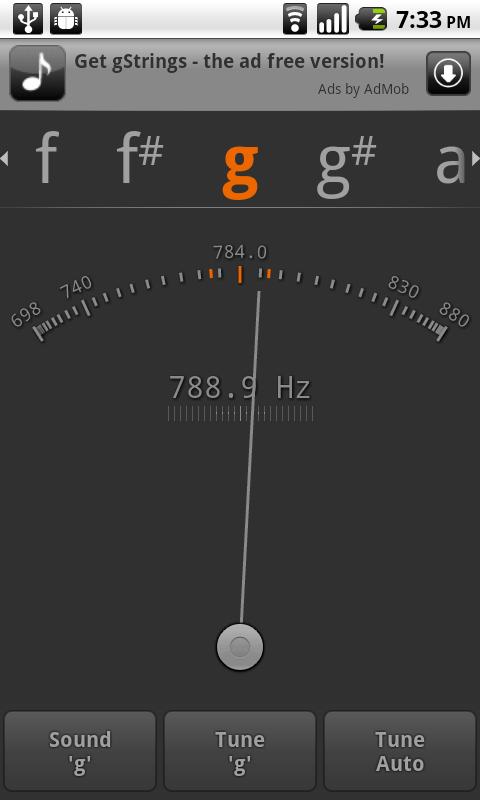
 gStrings is one of my favourite apps. This app has been downloaded over 40,000 times. I have checked it against my faithful old tuner and I find it equally sensitive and accurate. You can also change the setting to tune violin, ukulele, etc. This is really fantastic for people who play multiple instruments.


Of course, who doesn't need a chord finder every now and then? Basic Chords has only slightly over a 1,000 downloads but I like it for its simplicity. It shows you all the different variations of the same chord, as well as plays the chord when you touch it. You can also choose other instruments like ukulele, mandolin, etc.
Thursday, September 29, 2011
Samsung Gio; my new smartphone
I have just bought a new smartphone (goodbye to my Nokia E71). At AUD$199, it is on the cheaper-end of the smartphone lineup. This is the first time I have owned an Android device and I love it! It does not feel like a phone; it is more like a small tablet with a phone function.
Unlike some previous phones I have had, this works right out of the box, I just popped my SIM card into it and off it went. Even the Gmail and Google browser were all set up and ready to go. This is the most seamless phone I have ever come across, in terms of applications. The apps store is simply amazing, as compared to Symbian apps which are far fewer in number and frequently have compatibility problems.
 One of the first things I looked for is a good camera in the phone and I am not disappointed. The camera is far better than in all the phones I have ever owned. Here is a sample shot.
Unlike some previous phones I have had, this works right out of the box, I just popped my SIM card into it and off it went. Even the Gmail and Google browser were all set up and ready to go. This is the most seamless phone I have ever come across, in terms of applications. The apps store is simply amazing, as compared to Symbian apps which are far fewer in number and frequently have compatibility problems.
 One of the first things I looked for is a good camera in the phone and I am not disappointed. The camera is far better than in all the phones I have ever owned. Here is a sample shot.
Sunday, May 15, 2011
Vlingo for my Nokia E71
Having bought a mobile phone with a qwerty keyboard, I thought it would be really neat if I didn't have to use it. This might sound ironical but it is true. I actually found an app called "Vlingo" that transcribes speech into written words. I have only installed the free version, whereas the paid version takes it one step further into creating text or email messages right from start to finish.
To surf the web, I just have to hold the voice key/mute button and just say a few words. Then it will open up a pre-chosen browser and show me the search results.
To dictate a message, I press the same voice key/mute button and hold it down. Then I say "Note" and start talking. When I release the button, the speech is transcribed into text. It does a pretty accurate job too. (If it doesn't, then blame it on your foreign accent)
Having created a message in my Note application, I can then send it out as an SMS message or an email message. What do you think of that?
To surf the web, I just have to hold the voice key/mute button and just say a few words. Then it will open up a pre-chosen browser and show me the search results.
To dictate a message, I press the same voice key/mute button and hold it down. Then I say "Note" and start talking. When I release the button, the speech is transcribed into text. It does a pretty accurate job too. (If it doesn't, then blame it on your foreign accent)
Having created a message in my Note application, I can then send it out as an SMS message or an email message. What do you think of that?
Sunday, May 8, 2011
Best time to upgrade your mobile
This is a great time to upgrade your mobile phone. The last one month or so has a seen a dramatic drop in prices of some of the older models. I upgraded my Nokia N73 to the Nokia E71. The E71 was one of Nokia's cutting edge smartphone when it was launched in November 2008. Yes, it is a bit dated now, but the price has dropped from its launch price of $299 to $199, and now to $129 just a month ago. Along with that I have also noticed a number of other models selling at big discounts.
 Nokia might be losing out in the smartphone war but I am still one of its remaining fans. The E71 (see picture), at its now-attractive price of AUD$129, is packed full of features that you can only find in phones twice the price. Its connectivity includes 3G, WiFi, bluetooth, infrared, and USB. It comes with a free 2GB memory card. I would choose the qwerty keyboard buttons over a touch screen one anytime. The software platform is Symbian OS 9.2, Series 60 v3.1; Nokia's latest. On this platform, one has access to all the useful apps that anyone could possibly need. I have installed and tested out Fring for video calls, Email, Audiomail, and a few other apps. I have yet to try out many other exciting ones. The call card scanner is great; with one scan it reads the name, phone numbers, fax, and email, and lets me store these into my contact list with one push of a button.
This phone certainly lacks nothing as far as I am concerned. An iPhone or a Galaxy user will sneer at the small screen. But small screen is good; it draws less power and the screen is less likely to break if accidentally dropped. And nothing beats the physical qwerty keyboard for typing out a quick email or an SMS.
This phone certainly lacks nothing as far as I am concerned. An iPhone or a Galaxy user will sneer at the small screen. But small screen is good; it draws less power and the screen is less likely to break if accidentally dropped. And nothing beats the physical qwerty keyboard for typing out a quick email or an SMS.
Saturday, April 30, 2011
Cordless LED reading light

What I really like about this is that the light is of just the right intensity and it is highly diffused. You won't see any harsh shadow lines on your book. As it is cordless, you can carry it with you and place it wherever you want. Definitely a thumbs up from me. I got it today from Aldi for AUD$20.
Subscribe to:
Posts (Atom)