- Open an image
- Create a new file in another tab: File>New. Set Preset to the name of the previous image file.
- In this blank image, choose and paint in the required gradient in black and white monotone.
- Go back to the previous image (click on the tab)
- Select Image>Calculations.Set Source 1 as the original image, and Source 2 as the gradient image. Set Blending mode to Difference, and Opacity to 100%. The result can be set to New Document or as required.
- To make the image save-able, set Image>Mode to Grayscale, and then repeat and set Image>Mode to RGB colour. The image is now save-able in the correct colour space.
Showing posts with label photoshop. Show all posts
Showing posts with label photoshop. Show all posts
Wednesday, July 1, 2015
Notes to myself: Using Image>Calculations with Gradient mask
It is possible to create a selective positive/negative image using gradient mask. The resultant image is in B&W with parts of it in positive and part of it in negative.


Tuesday, June 30, 2015
Notes to myself: Lighthouse blending by Les Walkling
The simple contrast reducing mask is :
Duplicate layer (Ctl+J)
then de-saturate layer, (Ctl+shift+u)
invert (Ctl+i),
change blend mode to Overlay.
Go-to Filter/ blur/ Add Gaussian Blur, 10-60 adjust for effect.
Then adjust opacity for effect.
For areas with halo effect, use brush, set blend mode to Darken or Lighten, and then paint out the halo effect. (Hold down Alt key to sample the correct colour to paint out the halo.)
Duplicate layer (Ctl+J)
then de-saturate layer, (Ctl+shift+u)
invert (Ctl+i),
change blend mode to Overlay.
Go-to Filter/ blur/ Add Gaussian Blur, 10-60 adjust for effect.
Then adjust opacity for effect.
For areas with halo effect, use brush, set blend mode to Darken or Lighten, and then paint out the halo effect. (Hold down Alt key to sample the correct colour to paint out the halo.)
Notes to myself: Adding gray layer for selective exposure adjustments
Rather than using a brush to work directly on the image, it is better to create a layer filled with 50% gray. To do this:
- Open an image
- Layer>New>Layer. Select: Mode: Overlay, and tick the box ("Fill with Overlay-neutral colour (50% gray)")
- To make selective exposure adjustments, select Brush tool. Set Mode: Normal, Opacity 100%, Flow: 10%. Paint with Black to darken, or White to lighten.
To pin a layer to the layer directly below (so as not to affect other layers), hold down the Alt key and move cursor to the separation between the two layers. The cursor will change from hand icon to a different icon.
Monday, January 7, 2013
Mona Lisa portrait, anyone?
I couldn't resist trying my hand at making my own Mona Lisa image. I used this image that I shot using my Panasonic LX7. The light source illuminates the face in about the same way as the Mona Lisa.

For post editing, I used Pixlr Express (a free app that is installed in my Chrome browser) to adjust the colour, as well as add the canvas overlay for texture. I decided not to flip the portrait horizontally as it looks nicer this way.


For post editing, I used Pixlr Express (a free app that is installed in my Chrome browser) to adjust the colour, as well as add the canvas overlay for texture. I decided not to flip the portrait horizontally as it looks nicer this way.

For comparison, here is the original Mona Lisa.

Saturday, October 27, 2012
Digital post-processing for competition
In my observation, all the images entered for high level competitions in photography have been post-processed in one way or another. Gradually, I have come to accept that SOOC (straight out of camera) images are simply not going to cut it for competition. There are many arguments "for" and "against" post-processing, but the fact remains that even during films days, the best images have always been manipulated in the darkroom. That is why we have photoshop terms like dodge, burn, unsharpen mask, etc.
If you can't beat them, join them; so they say. My quest to discover the secrets to successful post processing techniques was finally rewarded after attending a talk on this topic in the camera club. Here, a long-time photographer showed his images and introduced the software that he used. I installed Nik Software and Topaz, ran through the online guides and tutorials, then tried them out for a few days.
Below are some before and after post-processing images I did yesterday. No heavy lifting with Photoshop was required. By applying appropriate presets and using minor adjustments in a combination of Lightroom, Nik Software, Topaz, and Photoshop, I was able to get the result in a cinch. Voila!


If you can't beat them, join them; so they say. My quest to discover the secrets to successful post processing techniques was finally rewarded after attending a talk on this topic in the camera club. Here, a long-time photographer showed his images and introduced the software that he used. I installed Nik Software and Topaz, ran through the online guides and tutorials, then tried them out for a few days.
Below are some before and after post-processing images I did yesterday. No heavy lifting with Photoshop was required. By applying appropriate presets and using minor adjustments in a combination of Lightroom, Nik Software, Topaz, and Photoshop, I was able to get the result in a cinch. Voila!


Sunday, October 21, 2012
Ararat Masonic Centre


Sunday, May 27, 2012
Melbourne camera expo 2012
This year's camera expo in Melbourne is called The Digital Show. What I enjoyed most in this year's show is the photo exhibition section. The images in the AIPP section are the cream of the crop. The images are all highly creative and they are all tastefully photoshopped. An image straight out of the camera will not make it to the very top of the heap. It must be tastefully and artistically improved to give it the cutting edge.
I took some of the images at random with my mobile phone in order to display here, just to show what I mean by "tastefully photoshopped". They almost look like paintings. I dare say almost all of those in the AIPP section are not created by simply adding run-of-the-mill effects (I can't say the same for some of those in the less competitve sections).


I took some of the images at random with my mobile phone in order to display here, just to show what I mean by "tastefully photoshopped". They almost look like paintings. I dare say almost all of those in the AIPP section are not created by simply adding run-of-the-mill effects (I can't say the same for some of those in the less competitve sections).


Saturday, May 5, 2012
Adobe Photoshop Express
Of all the free photo editing apps I have come across for the smartphone and tablets, this one has got to be best*. The interface is so well designed that the learning curve is a snap (pun aside). Plus it is free. The paid upgrade doesn't do much more; so it is just as well.
Granted it does not have a slew of effects (HDR and panorama stitch would have been nice), but it does all the basic things like crop, straighten, rotation, exposure, saturation, tint, B&W, contrast changes. Most of these are done by simply swiping a finger across the display (how well thought out!). It does go further with sketch, soft focus, sharpening, as well as a few effects. I can see Adobe easily adding more tools and effects and the interface would still be just as simple and as uncluttered as before.
Adobe has certainly set another benchmark for what a tablet's photo editing app should be like. It certainly did with Photoshop (for graphics artists), and later with Lightroom (for photographers). I reckon this app should be THE benchmark for happy snappers and smartphone/tablet users.
Check out Luminance too. It costs $0.99. I haven't tried to out but it looks like a great app.
Granted it does not have a slew of effects (HDR and panorama stitch would have been nice), but it does all the basic things like crop, straighten, rotation, exposure, saturation, tint, B&W, contrast changes. Most of these are done by simply swiping a finger across the display (how well thought out!). It does go further with sketch, soft focus, sharpening, as well as a few effects. I can see Adobe easily adding more tools and effects and the interface would still be just as simple and as uncluttered as before.
Adobe has certainly set another benchmark for what a tablet's photo editing app should be like. It certainly did with Photoshop (for graphics artists), and later with Lightroom (for photographers). I reckon this app should be THE benchmark for happy snappers and smartphone/tablet users.
Check out Luminance too. It costs $0.99. I haven't tried to out but it looks like a great app.
Sunday, September 11, 2011
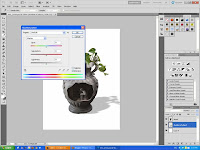
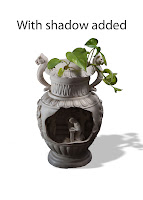
Notes to myself: Adding shadow in Photoshop
Here is a quick and easy way to add shadow in Photoshop.
1. Get ready the background layer. In this case, it is plain white.
2. Add a new layer with the cut out. In this case, I chose a vase.
3. Duplicate the cut out layer and move it below the previous layer (shadow always falls behind).
The fun part:
4. On the shadow layer, press Control U to bring out Hue/Saturation Adjustment. Move the Lightness slider all the way to the left to make it dark. Reduce opacity to 25% or as desired. Add Gaussian Blur to the shadow layer using Filter>Blur>Gaussian Blur.
5. Still on the shadow layer, distort the shadow using Edit>Transform>Distort.

1. Get ready the background layer. In this case, it is plain white.
2. Add a new layer with the cut out. In this case, I chose a vase.
3. Duplicate the cut out layer and move it below the previous layer (shadow always falls behind).
The fun part:
4. On the shadow layer, press Control U to bring out Hue/Saturation Adjustment. Move the Lightness slider all the way to the left to make it dark. Reduce opacity to 25% or as desired. Add Gaussian Blur to the shadow layer using Filter>Blur>Gaussian Blur.
5. Still on the shadow layer, distort the shadow using Edit>Transform>Distort.


Sunday, August 29, 2010
Would I edit my photos for competition?
Today I went to the Geelong Art Gallery. Our camera club organized an outing there to view the Vigex Photo Exhibition. It is an international-level exhibition, thus boasting entries from all over the world. At this exhibition I realized that all the photos, except those in the Nature category, have obviously been photoshopped. Thus I am now more amicable to image editing in competition photographs. I now accept that it is perfectly alright for a photograph to be "tuned up" before it is ready for competition. Everybody does that. Even in the film days, post processing enhancements were done in the darkroom. Thus we have the terms "dodge" and "burn" in image editing which originate from the film days.
On the same token, a photographer may forgive himself if his shots are never going to be "picture perfect" straight out of the camera. It should also be recognized that a digital photographer without Lightroom (or any other image editing software) is like a film-days photographer without a darkroom.
On the same token, a photographer may forgive himself if his shots are never going to be "picture perfect" straight out of the camera. It should also be recognized that a digital photographer without Lightroom (or any other image editing software) is like a film-days photographer without a darkroom.
Monday, July 5, 2010
Video lessons on the internet
Many of us would have probably forgotten that not so many years ago it was quite cumbersome to share video content over the internet. The internet speed was prohibitively slow and expensive, not to mention the quality of the video, and the difficulty of video production. These days, you can get a pretty decent videocam for less than $150 (e.g. the Flip videocam). Plus, the process of publishing on the internet has become much less cumbersome.
So the day of video lessons has finally arrived. To have a tutor at your disposal and to be able to replay the same lesson over and over again until you master it; isn't that a big boon for education? As I browsed through the books on Photoshop at Borders today, my mind kept going back to the video tutorials. Learning Photoshop, in particular, is best done through video tutorial as it can convey the "touch and feel" of it. You can find so many Photoshop lessons on the Youtube and they are all free. Or, you can buy photography magazines and many of them come with a DVD that usually has video tutorials. If you are keen to learn Photoshop, don't waste your money buying books or going for classes. Go to Youtube. You will probably find lots of lessons on other hobbies too: knitting, guitaring, painting, etc. To me, this is one of the most exciting part of the information age: to be able to access and use information, and to go further than one has ever gone before!
So the day of video lessons has finally arrived. To have a tutor at your disposal and to be able to replay the same lesson over and over again until you master it; isn't that a big boon for education? As I browsed through the books on Photoshop at Borders today, my mind kept going back to the video tutorials. Learning Photoshop, in particular, is best done through video tutorial as it can convey the "touch and feel" of it. You can find so many Photoshop lessons on the Youtube and they are all free. Or, you can buy photography magazines and many of them come with a DVD that usually has video tutorials. If you are keen to learn Photoshop, don't waste your money buying books or going for classes. Go to Youtube. You will probably find lots of lessons on other hobbies too: knitting, guitaring, painting, etc. To me, this is one of the most exciting part of the information age: to be able to access and use information, and to go further than one has ever gone before!
Sunday, July 4, 2010
The trick to learning Photoshop
Many years ago I challenged myself to learn Photoshop. It looked easy enough but I never really got a grip on it for many years despite many attempts. I wish someone had told me then that the trick to learning Photoshop is to master two essential skills: layers and selections. At this point of my journey in Photoshop, I feel that I have passed a critical milestone. Everything about Photoshop seems to fall into place now that I have a good grip on layers and selection. I know it will take me a long time before I can do fancy artwork, but at least I don't feel lost.
Tuesday, June 15, 2010
Lightroom 3 wins over Capture One Pro 5
That's it. Being a very organized person, the workflow in Capture One is too messy for my liking, not to mention that it crashed once on me. I think I'll stick to Lightroom 3. I've spent a whole day today trying to see if Capture One can actually do a better job at Raw conversion. Well, I really can't tell much difference between the two. To test this out, I used the same images to do the same enhancements on each program, going through several of the tools I am familiar with. While Capture One has a moire tool that Lightroom 3 does not have, and a better set of Style presets, it does a truly horrible job at vignetting. Lightroom 3 has red eye correction tool, gradient tool, and a very useful adjustment brush, all of which Capture One does not have.
What Capture One does poorly in terms of library structure and workspace organization, Lightroom does remarkably well. I love the fact that Lightroom does not create any files or folders in my photo archives until I am ready to export. In Capture One, each time I import an image or start a session, a folder is create in my archive. Lightroom completely keeps of out my archives, no matter how many folders I import into Lightroom to work on.
I love the big Reset button in Lightroom that allows me to immediately go back to the starting point. I love being able to remove any of the changes at any time with gradient, red eye correction, spot removal, and adjustment brush tools. In Capture One, I'll have to reverse my steps one step at a time. Lightroom tools are more logically organized. Hence I spend less time on the job. In Capture One I have to spend more time opening tabs to get to the tools.
I am happy to stick with Lightroom 3 and ready to drop Capture One Pro 5 for now. Well done, Adobe!
What Capture One does poorly in terms of library structure and workspace organization, Lightroom does remarkably well. I love the fact that Lightroom does not create any files or folders in my photo archives until I am ready to export. In Capture One, each time I import an image or start a session, a folder is create in my archive. Lightroom completely keeps of out my archives, no matter how many folders I import into Lightroom to work on.
I love the big Reset button in Lightroom that allows me to immediately go back to the starting point. I love being able to remove any of the changes at any time with gradient, red eye correction, spot removal, and adjustment brush tools. In Capture One, I'll have to reverse my steps one step at a time. Lightroom tools are more logically organized. Hence I spend less time on the job. In Capture One I have to spend more time opening tabs to get to the tools.
I am happy to stick with Lightroom 3 and ready to drop Capture One Pro 5 for now. Well done, Adobe!
Monday, June 14, 2010
Capture One Pro 5 and Lightroom 3
First, I must say I have been a big fan of Lightroom 2. I think it is the best software around for photographers. It is definitely much more useful than Photoshop, unless one is more inclined to do post processing work than actual shooting.
In the last couple of days I had the chance to download the trial versions of a couple of other programs. One is Capture One Pro 5, from Phase One. The other is Lightroom 3 from Adobe. I tried out Capture One Pro first. I immediately liked the ability to shoot tethered. That is to say, I can connect my D90 to the computer via USB cable and shoot straight into the PC. As for other post processing work, Capture One does a beautiful job. The noise reduction feature, especially, works a miracle. Neat Image software used to be the standard-bearer in this area, but now it looks like Capture One can do the job with just a few control sliders. I was utterly convinced that Capture One is THE answer to a photographer's dream.
Next, I tried out Lightroom 3. What do you know - it has more or less the same features as Capture One Pro 5. In fact, since Capture One Pro 5 was released earlier than Lightroom 3, it looks like Lightroom 3 has imitated the feature set of the former. It can do tethered shooting with the same ease as Capture One, and it boasts the same noise reduction capability as Capture One. I find that Lightroom 3 has a much simpler work flow and is less steep on the learning curve. On the other hand I am not about to write off Capture One. I think the tossup between these two wonderful software is in the quality of the RAW conversion. My simple guess is that Phase One knows more about producing the best image quality, while Adobe knows how to make the software easier for people to use. Goodbye, Photoshop.
In the last couple of days I had the chance to download the trial versions of a couple of other programs. One is Capture One Pro 5, from Phase One. The other is Lightroom 3 from Adobe. I tried out Capture One Pro first. I immediately liked the ability to shoot tethered. That is to say, I can connect my D90 to the computer via USB cable and shoot straight into the PC. As for other post processing work, Capture One does a beautiful job. The noise reduction feature, especially, works a miracle. Neat Image software used to be the standard-bearer in this area, but now it looks like Capture One can do the job with just a few control sliders. I was utterly convinced that Capture One is THE answer to a photographer's dream.
Next, I tried out Lightroom 3. What do you know - it has more or less the same features as Capture One Pro 5. In fact, since Capture One Pro 5 was released earlier than Lightroom 3, it looks like Lightroom 3 has imitated the feature set of the former. It can do tethered shooting with the same ease as Capture One, and it boasts the same noise reduction capability as Capture One. I find that Lightroom 3 has a much simpler work flow and is less steep on the learning curve. On the other hand I am not about to write off Capture One. I think the tossup between these two wonderful software is in the quality of the RAW conversion. My simple guess is that Phase One knows more about producing the best image quality, while Adobe knows how to make the software easier for people to use. Goodbye, Photoshop.
Thursday, May 13, 2010
Portrait Professional Studio

Here is a software that I recently came across and tried out. It is called Portrait Professional Studio. It took me just a few minutes to turn the picture on the left into the picture on the right. This software costs only a fraction of what Photoshop costs. Since I am not willing to spend hours on manipulating the image using Photoshop, this software looks promising to me. It is going to enable me to brush up (pun intended) on any of my portraits and make them look refined in a snap (pun intended).
(By the way, the image has been sculptured to look more glamourous: fuller lips, narrower jaw, longer neck, etc. This is something that mazaine covers do too. The software allows you to make any or all of the sculpturing changes at will)
Saturday, March 20, 2010
www.photomalaysia.com
It is becoming a norm these days to do a certain amount of touch up on the photos we shoot. It is hard to draw a line to distinguish what is real photography skill and what is simply digital manipulation skill. A photographer who has zero skill in rudimentary post processing is increasingly left behind in this day and age. On the other hand, there is no limit to what one can do with digital manipulation.
A couple of days ago I looked at some of the online albums of great photographers I have bookmarked. For the first time many of the photographs that I used to admire I now see in a different light. Many are obviously photoshopped and the resulting image would not be possible on a camera alone. I begin to have new found respect for the photos in websites such as www.photomalaysia.com. Some of the images in this website are really good and not heavily post-processed. Of course, there are also many images ranging from beginner stuff to highly manipulated ones, but it was refreshing to me to find many impressive ones that could have come straight from the camera. Kudos to photographers in Malaysia.
A couple of days ago I looked at some of the online albums of great photographers I have bookmarked. For the first time many of the photographs that I used to admire I now see in a different light. Many are obviously photoshopped and the resulting image would not be possible on a camera alone. I begin to have new found respect for the photos in websites such as www.photomalaysia.com. Some of the images in this website are really good and not heavily post-processed. Of course, there are also many images ranging from beginner stuff to highly manipulated ones, but it was refreshing to me to find many impressive ones that could have come straight from the camera. Kudos to photographers in Malaysia.
Sunday, August 23, 2009
Notes to myself: Masking in Photoshop
Here is another note to myself but readers are welcome. For a long time I have not been able to master the use of Mask in Photoshop. Today I managed to pick it up after following a tip in a photography magazine.
Here is one technique that uses Mask to darken the sky while keeping the foreground constant. First, open the file in Photoshop. Make a duplicate (drag the "background" layer to the "create a new layer" icon). Use Lasso tool to get a rough outline of the sky area that needs to be darkened. Go to Select>Colour Range; and while holding the shift key click on different parts of the sky until all the black in the preview area disappears. Next, click "add layer mask" icon to turn the selection into mask. Now grab the Blend mode pulldown menu and switch to Multiply. Finally, to fine tune the area where the sky meets the horizon, use Gaussian Blur.
Variations of this technique include:
1. Instead of the Blend option, use Levels to change the brightness of the sky.
2. Instead of using the Lasso tool, use one of the Channels to aid in selecting the target area. Remember to also use Levels or Contrast to aid in isolating the target area.
Hooray! I feel I have crossed another milestone in Photoshop!
Here is one technique that uses Mask to darken the sky while keeping the foreground constant. First, open the file in Photoshop. Make a duplicate (drag the "background" layer to the "create a new layer" icon). Use Lasso tool to get a rough outline of the sky area that needs to be darkened. Go to Select>Colour Range; and while holding the shift key click on different parts of the sky until all the black in the preview area disappears. Next, click "add layer mask" icon to turn the selection into mask. Now grab the Blend mode pulldown menu and switch to Multiply. Finally, to fine tune the area where the sky meets the horizon, use Gaussian Blur.
Variations of this technique include:
1. Instead of the Blend option, use Levels to change the brightness of the sky.
2. Instead of using the Lasso tool, use one of the Channels to aid in selecting the target area. Remember to also use Levels or Contrast to aid in isolating the target area.
Hooray! I feel I have crossed another milestone in Photoshop!
Saturday, December 6, 2008
My experience with digital IR photography
 When I first got my Sony F717 camera in 2002, I experimented with infrared photography simply because this camera is particularly well suited for IR (infrared) work. The F717's nightshot feature is designed to capture IR images in the dark. Used in broad daylight, visible light is screened out by using a Hoya R72 IR filter. On top of that, an ND8 filter reduces the amount of exposure. IR light is then captured by the IR-sensitive CCD sensor of the digital camera. Post processing turns a bland IR image into a more interesting coloured image. The above picture is my first attempt on coloured IR.
How to produce coloured IR: With a Hoya R72 IR filter, the image is heavily tinted in red/magenta (although not visible in the Jpeg image). The idea is to correct this by swapping red and blue channels. Using the Photoshop channel mixer, select the RED setting and set Red to 0% and Blue to 100%. Likewise, in the BLUE setting, set Blue to 0% and Red to 100%. Next, select Auto Color. If desired, you can adjust the saturation in the Hue/Saturation setting, or experiment with the Levels and Curves settings. Below are an IR image before and after post processing using Irfanview (which can also do the job).


For details on Digital IR Photography, see: http://www.dpfwiw.com/ir.htm#handle
For quick tutorial, see: http://www.tutorial9.net/photography/infrared-photography/
Subscribe to:
Posts (Atom)